Article 09
Apple Music Visualizer for Mac: Make the Desktop React
Apple Music does not need a special visualizer plug-in for the desktop to move with it. The direct route is to analyze the sound already leaving the Mac, then turn that short-lived signal into motion.
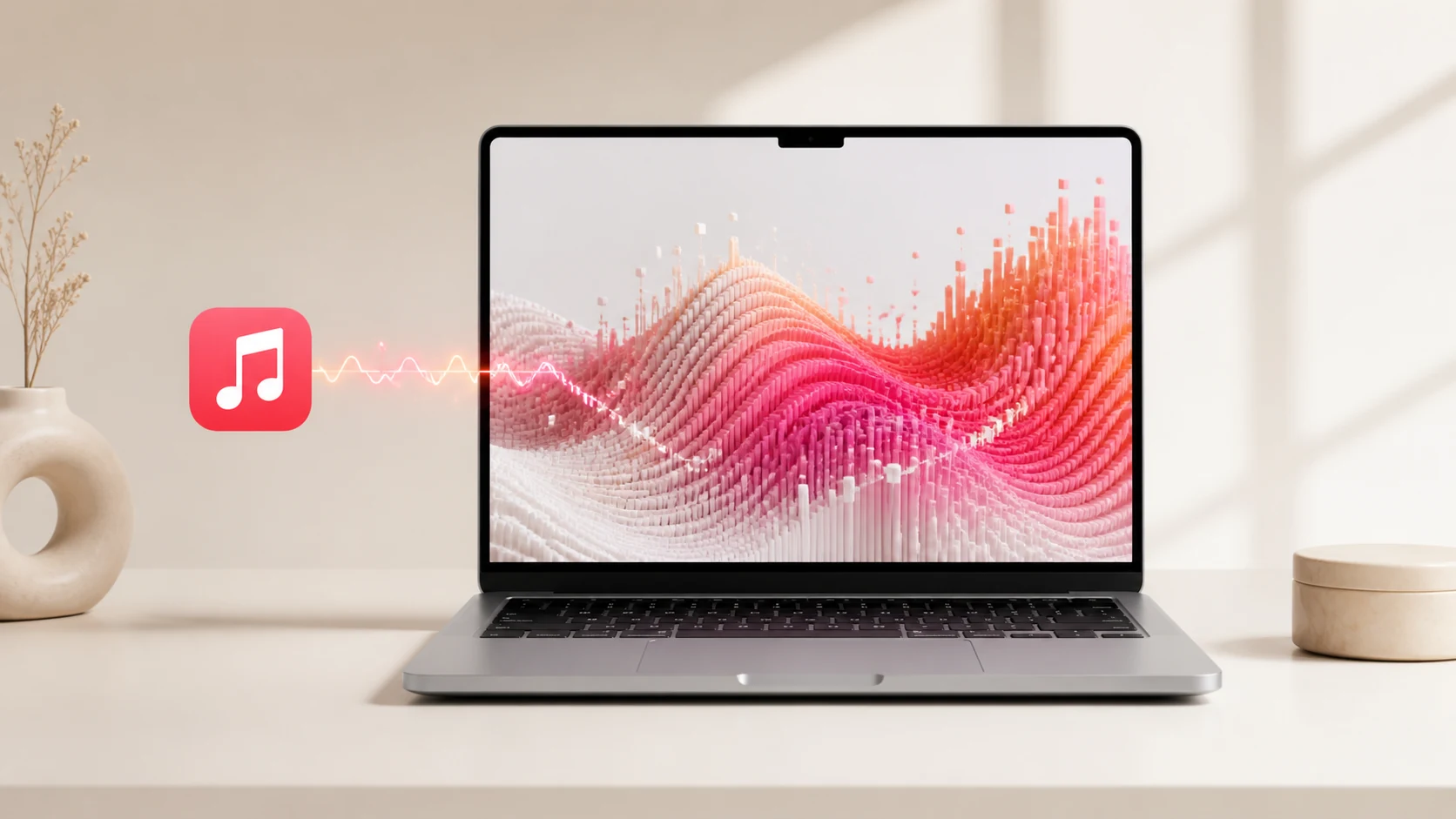
Short answer
Use a system-audio visualizer. Apple Music keeps playing normally while the visualizer analyzes the Mac’s outgoing audio locally and renders a responsive scene. No Apple Music login, playlist access or track recognition is required.
First decide what you want Apple Music to control
“Apple Music visualizer” can mean album artwork, a separate full-screen animation or a wallpaper that responds to the current sound. Those are different systems. Artwork follows metadata. A video follows its own timeline. An audio-reactive scene follows measurements taken from the sound as it plays.
For a desktop visual, the important question is not whether an app can read your Apple Music library. It is whether it can receive the audio output, analyze it quickly and render the result behind your windows.
| Visual type | Input | Needs Apple Music access? | Follows the current sound? |
|---|---|---|---|
| Artwork or color sync | Track metadata and cover art | Usually | Not frame by frame |
| Video loop | A stored movie | No | No |
| System-audio visualizer | Outgoing Mac audio | No | Yes |
The route is Apple Music → macOS audio → the scene
Apple Music sends sound through the Mac’s audio system. With the required macOS permission, a visualizer can receive outgoing audio through a system audio tap. The app can then reduce a short window of sound to compact values such as overall energy, low-frequency energy and transient strength.
Those values become visual controls. Bass can widen a shape, midrange can move a surface and sharper transients can trigger faster detail. The renderer needs the measurements, not the song title, artist, lyrics or Apple Account that produced them.
- Apple Music plays
The Music app remains the player and keeps its normal playback controls.
- macOS routes the output
The same system route that reaches speakers or headphones provides the signal used for analysis.
- The analyzer measures recent sound
Short windows become frequency and intensity values; a whole-song recording is not required.
- The scene maps sound to motion
Each wallpaper decides how those values influence its geometry, color, particles and pace.
- Metal draws the next frame
The current scene is rendered live instead of selecting a frame from a stored music video.
Why VoxelWall does not need your Apple Music login
A service integration asks Apple Music who you are or what you are playing. A system-audio visualizer asks macOS only for the sound signal it needs to drive motion. These approaches solve different problems.
VoxelWall uses the second route. It does not connect to your Apple Account, inspect your library or request playlist history for its visual response. That separation also means the same wallpaper can keep working when you move from Apple Music to another player without signing in again.
The tradeoff is straightforward: a sound-driven scene can react to rhythm and frequency, but it does not automatically know the track name or display the correct album cover. Those features require metadata and are not part of the core visual path.
A simple setup on Mac
- Start VoxelWall
Open the app and choose a scene whose motion is easy to see.
- Allow system audio access
Approve the macOS request when the audio-reactive feature first needs it.
- Apply the wallpaper
Use a normal reactive mode rather than a pre-rendered energy-saving loop.
- Play a song in Apple Music
Begin with a track that has clear changes in bass, vocals and percussion.
- Compare two passages
A quiet section and a strong chorus should produce visibly different intensity while keeping the same scene.
A visual that keeps moving during silence may still have a gentle idle animation. The test is whether its timing and intensity change when the sound changes.
Volume, headphones and AirPlay are routing questions
The Music app can play through built-in speakers, wired headphones, Bluetooth devices or AirPlay. Changing the output can rebuild part of the Mac audio route. A visualizer may need to reconnect after that change even though Apple Music itself continues playing.
If the wallpaper stops responding after switching devices, first confirm that the Mac is producing audible output on the selected destination. Then pause and resume the visual or reopen the app. That isolates an audio-route change from a scene-rendering problem.
Do not diagnose the song by appearance alone. A quiet master, a long ambient passage or very soft playback can produce less dramatic movement. Test a second track with obvious transients before changing permissions or reinstalling anything.
What stays private
Audio access is not the same as Apple Music account access. VoxelWall processes the system-audio signal locally to calculate visual controls. It does not need to upload raw audio, retain a song recording or build a listening history for the scene to react.
macOS still treats system audio as a protected capability. The permission prompt is therefore expected, and the user can review access in system settings. Refusing permission should leave the visual without live sound response rather than silently pretending to hear the music.
If Apple Music is playing but the wallpaper is not reacting
- Confirm the scene is in an audio-reactive mode rather than Energy Saver.
- Check that Apple Music and the Mac output are not muted.
- Review the macOS system-audio permission granted to VoxelWall.
- Reconnect the visual after changing speakers, headphones or AirPlay output.
- Use a clearly rhythmic track to distinguish a quiet passage from a broken route.
- Quit and reopen VoxelWall after changing a system permission.
Frequently asked questions
Does Apple Music have to stay in front?
No. Apple Music remains the audio player, while the wallpaper occupies the desktop layer. The visual response does not require the Music window to be the active window.
Does this work with downloaded songs?
Yes, provided the song is producing audio through the Mac. The visualizer reacts to the output signal, not whether the track came from streaming or local storage.
Does it need an Apple Music subscription?
The visualizer only needs audible output. Apple controls which songs and Apple Music features your account can play, but the wallpaper response itself is not tied to a subscription tier.
Can it show the track title or album artwork?
Not from system audio alone. Track identity and artwork require a separate metadata connection; the reactive wallpaper is designed around the sound signal.
Will it react to other Mac audio too?
Yes. A system-audio route can respond when the source changes to a browser, YouTube, Spotify or a local player, without a new service login.