Article 02
How to Make Your Mac Wallpaper React to Any Music
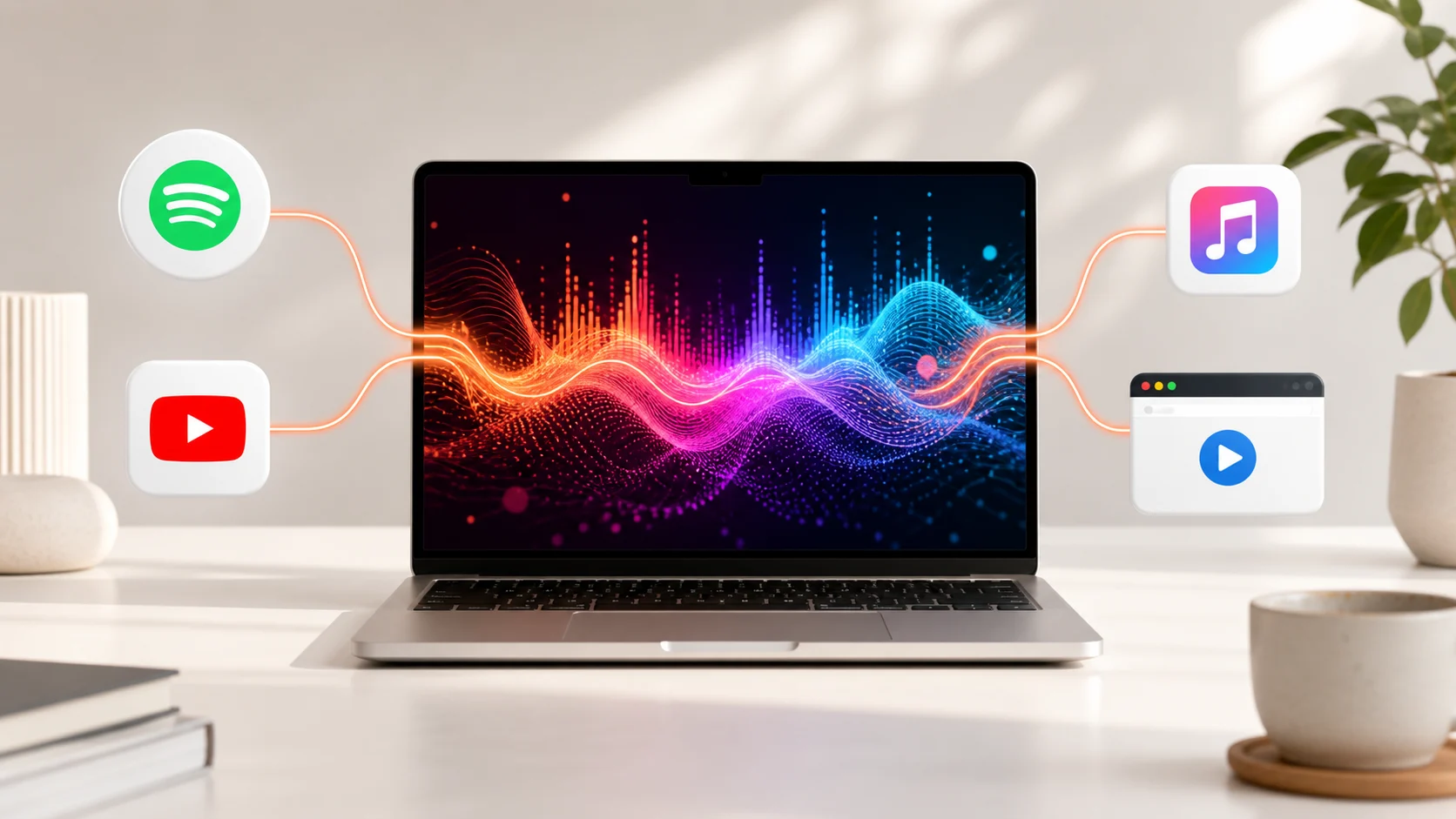
You should not need a different integration for every music app. The shortest setup is to react to the Mac’s audio output once, then let every player use the same visual path.
Short answer
Install an audio-reactive wallpaper engine, grant only the macOS audio permission it requests, choose a scene, then play sound from any app. The player and wallpaper remain separate.
The four-step setup
- Choose the visual mode
Use Desktop for an always-present background, Lock Screen for a focused moment, or Energy Saver for a silent prepared loop with less system work.
- Allow the audio connection
macOS controls access to system audio. Approve the prompt from the visualizer itself; no music-account password is required.
- Start any player
Use Spotify, Apple Music, YouTube, a browser, a DJ app or a local file. The source does not need a special plug-in.
- Tune for the room
Pick a calmer scene for work, a stronger response for a display wall, and reduce intensity when running on battery.
Why one audio route is better than five integrations
A per-service integration knows about one provider. A system-audio route knows about the sound that actually reaches the Mac output. That makes the setup smaller, reduces login prompts and keeps the behavior when the source changes halfway through a session.
The separation is also easy to understand: the music app plays music; the wallpaper engine turns a local signal into motion. Stopping the wallpaper does not stop the song, and changing the song does not require reconnecting the wallpaper.
What to check if nothing moves
- Confirm the Mac is producing audible output and is not muted.
- Check that the visualizer has the macOS permission it requested.
- Switch to a clearly rhythmic track to separate a quiet passage from a setup problem.
- Quit and reopen the visualizer after changing system permissions.
- If an external display is involved, first test on the built-in display to isolate display routing from audio routing.
A sensible first scene
Start with a scene whose response is obvious but not chaotic. Watch the low-frequency movement on a kick drum and the finer motion on vocals or percussion. Once you know the signal is arriving, choose based on taste rather than diagnostic visibility.
VoxelWall includes a live scene library rather than a folder of movie files. The scene is rendered as you listen, so repeating the same track does not mean replaying the same stored frames.
Before you start
Use a Mac running the minimum macOS version required by the wallpaper app and start with the built-in display. A simple first test removes external-display routing, unusual refresh rates and docking hardware from the problem. Once the basic response works, add the rest of the setup one part at a time.
You do not need to change your music library or import songs into the wallpaper app. Keep the player you already use. The only connection required for a system-audio visual is permission to process the output locally while the visual is running.
Treat that permission as a specific technical request, not a general invitation. The wallpaper app should explain why it is needed, what happens to the audio and whether the raw signal is retained. On VoxelWall, the signal is analyzed locally to produce visual control values; raw audio is not uploaded or stored.
Tune the scene without making every song look the same
Sensitivity controls how much motion a given amount of sound creates. Intensity controls how far the visual effect is allowed to travel. They are related but not identical. Raising both to maximum can flatten the difference between a quiet track and a loud one because the scene reaches its ceiling too often.
Start in the middle. Use a quiet passage to make sure the scene does not disappear completely, then use a dense passage to make sure it still has room to grow. If the app offers frequency emphasis, choose it according to the scene: low frequencies suit large, slow movement; higher frequencies suit fine surface motion and brief detail.
A work desktop usually benefits from slower motion and lower contrast. A music display can use stronger peaks. These are presentation choices, not connection settings, so you can change them without touching permissions or the player.
External displays, headphones and full-screen apps
Changing the audio output from speakers to headphones can cause macOS to rebuild part of the route. A well-behaved visualizer reconnects or clearly tells you that it needs to reconnect. If motion stops after an output change, pause and resume the scene before changing unrelated settings.
External displays increase the number of pixels the renderer may need to draw. Prove the audio connection on one display, then enable the second display and watch responsiveness and Energy Impact. A problem that appears only after adding a 4K or 5K screen is probably a rendering-load question, not an audio-permission question.
The most useful optimization is to reduce or pause work when the wallpaper cannot be seen. Test a full-screen video or game and confirm that the wallpaper app behaves sensibly in the background. This matters more in daily use than a perfect benchmark on an empty desktop.
Troubleshooting in the right order
| Symptom | Likely layer | First check |
|---|---|---|
| Scene is visible but never moves | Audio connection | Permission, mute state and active output device |
| Scene reacts but feels late | Analysis tuning | Smoothing and response settings |
| Works on one display but stutters on two | Rendering load | Resolution, frame rate and scene complexity |
| Stops after headphones connect | Audio route change | Restart or reconnect the scene |
| Everything is black or blank | Display/render state | Try one built-in display and a default scene |
Frequently asked questions
Do I need to install a Spotify plug-in?
No. A system-audio visualizer uses the audio already produced by macOS, so Spotify, Apple Music, browsers and local players can share the same route.
Will the wallpaper keep reacting when the Mac is muted?
If no usable output signal reaches the analysis path, there is nothing meaningful to drive the scene. Exact muted-output behavior can vary with the macOS route and the app implementation.
Can I use it on more than one monitor?
Yes if the wallpaper app supports multiple displays, but each additional high-resolution surface increases rendering work. Add displays after confirming the first one works.
Should I use maximum sensitivity?
Usually not. Maximum sensitivity can make quiet details visible, but it can also make loud sections hit the same ceiling and remove musical contrast.